Portal Worx Logo

Sign-off, in detail

Sign-off from people who'll never log in, step by step.

A drawing, a quote or a variation goes out as one link. The person at the other end opens it on whatever they have, reads the file itself, and approves or rejects it with a drawn signature. Nothing to install, nothing to remember, and what comes back is a record you can hand to anyone.
Last reviewed

The whole loop: the request sent from one dialog, the email in the client's inbox, the client approving and signing with no account, and the Approvals Centre showing it settled

What happens, from your send to their signature

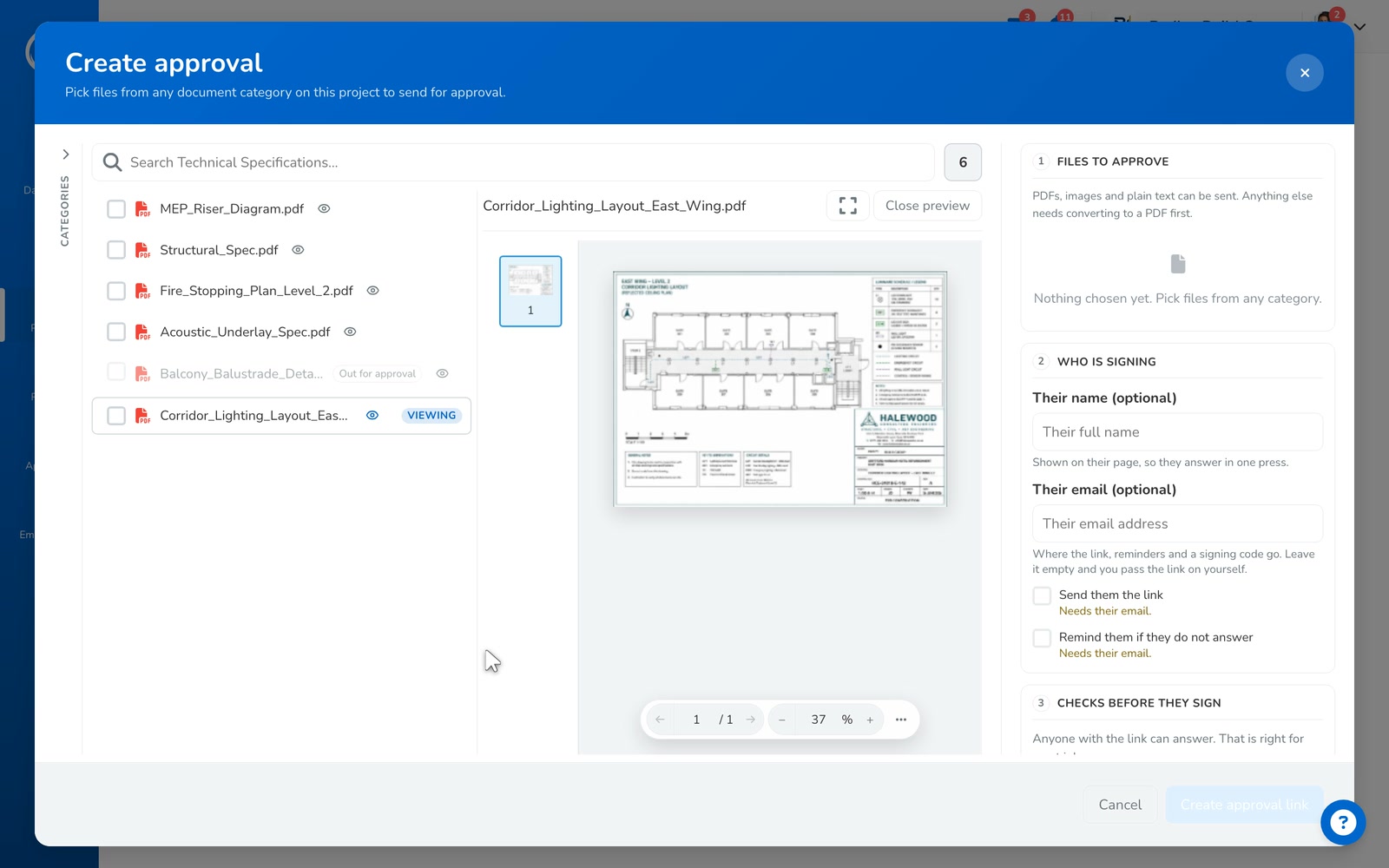
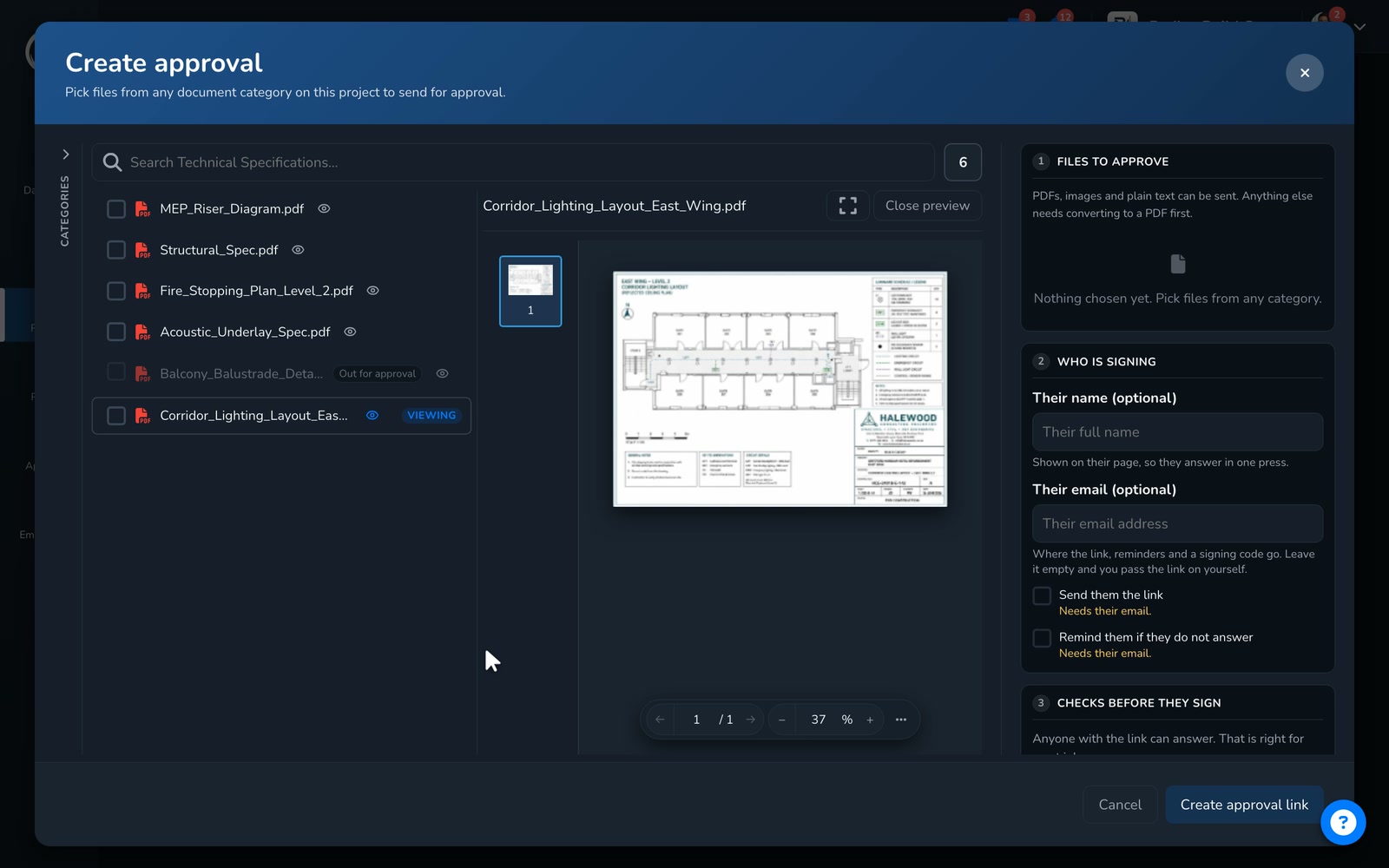
  1. You pick the file and name the person

    From any document row, Request sign-off. The file is already attached. Type their name and email, choose whether reminders chase them and whether they have to type in a one-time emailed code before they sign, and send. Several files can go in one request, and each gets its own answer.
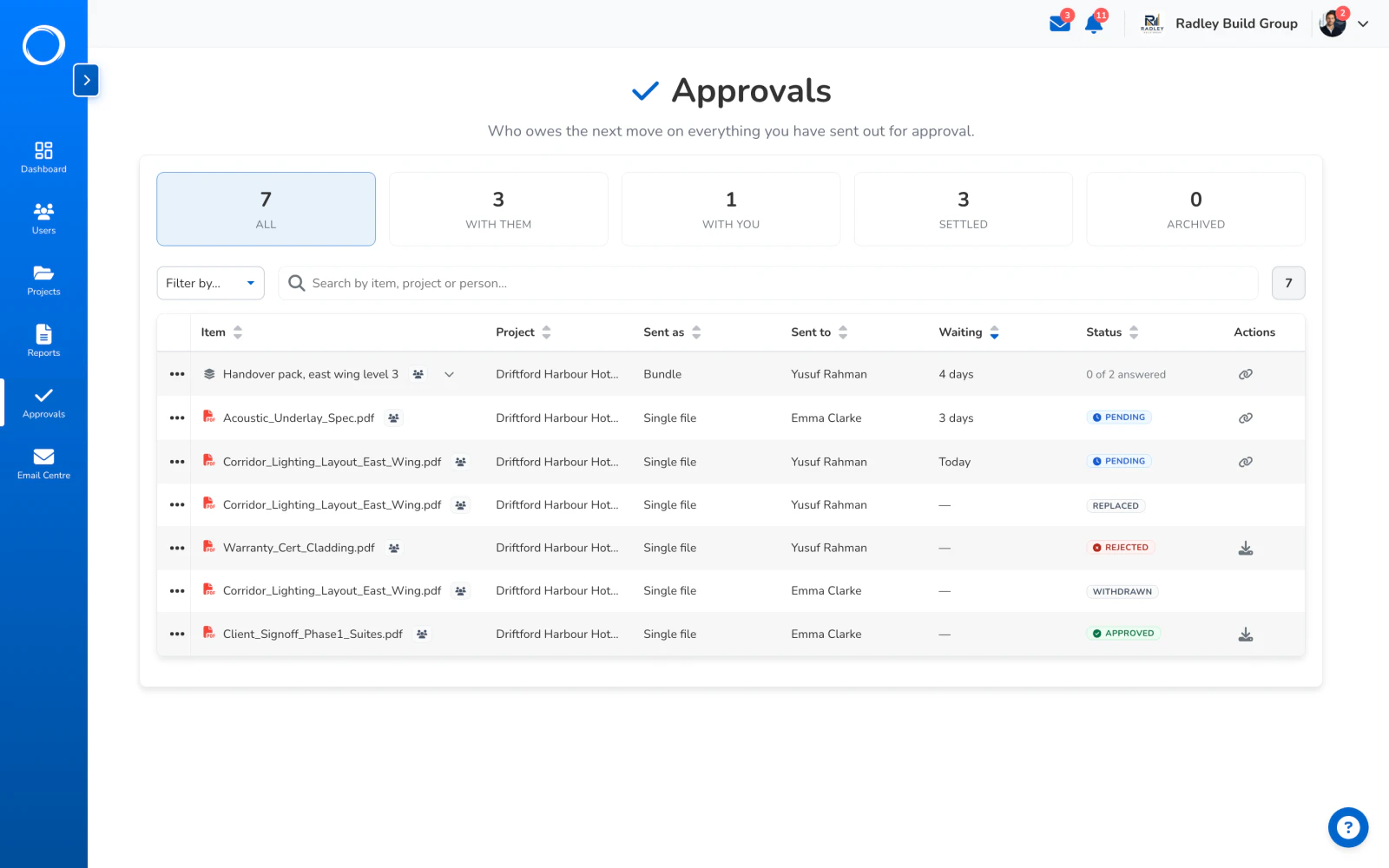
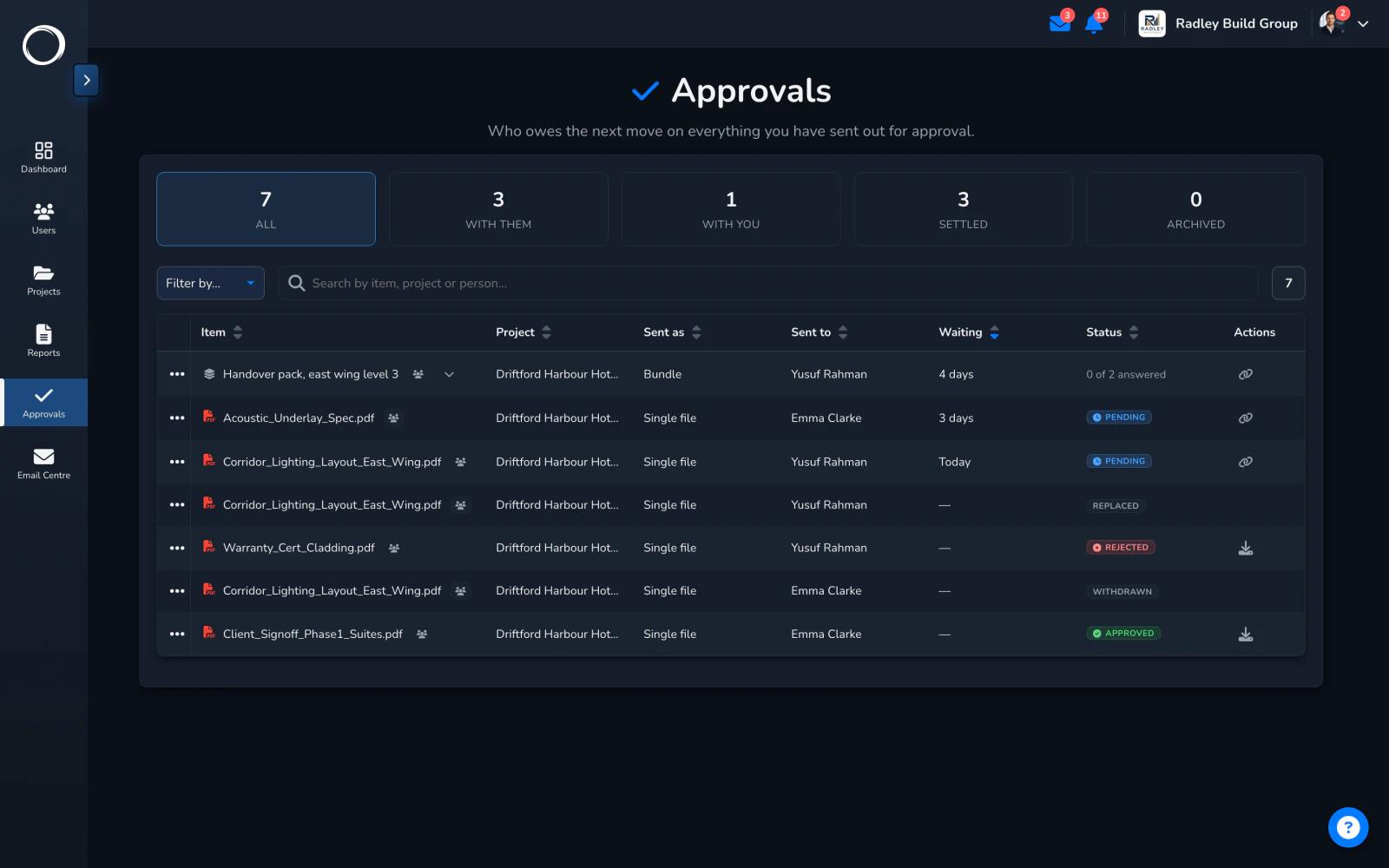
    The Approvals Centre after sending: the request sits under With them until they answer
  2. The link arrives

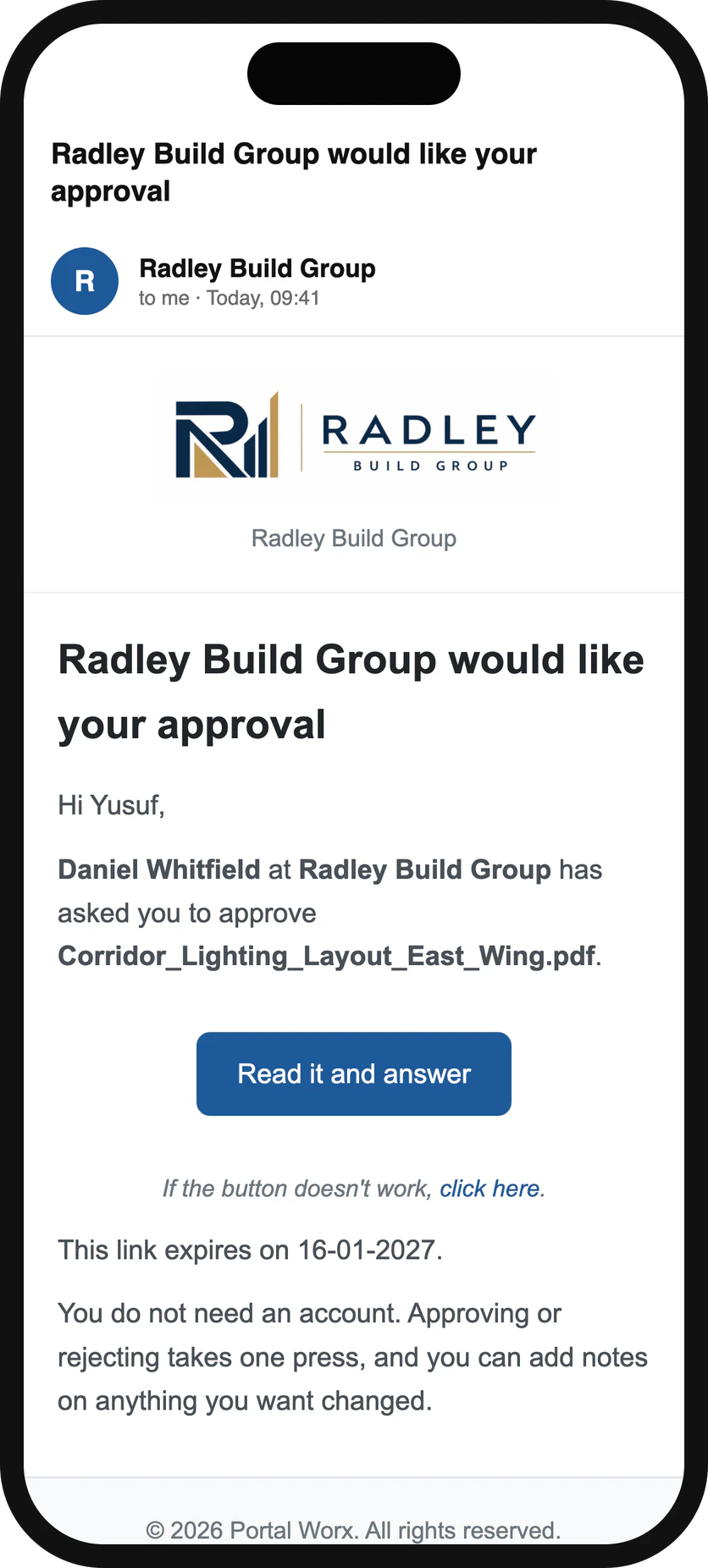
    They get an email from you, in your name and with your logo on it, with one link in it. No account to make, nothing to install. The link works for 90 days or until you turn it off, and takes a six-digit PIN if the file deserves a second check.
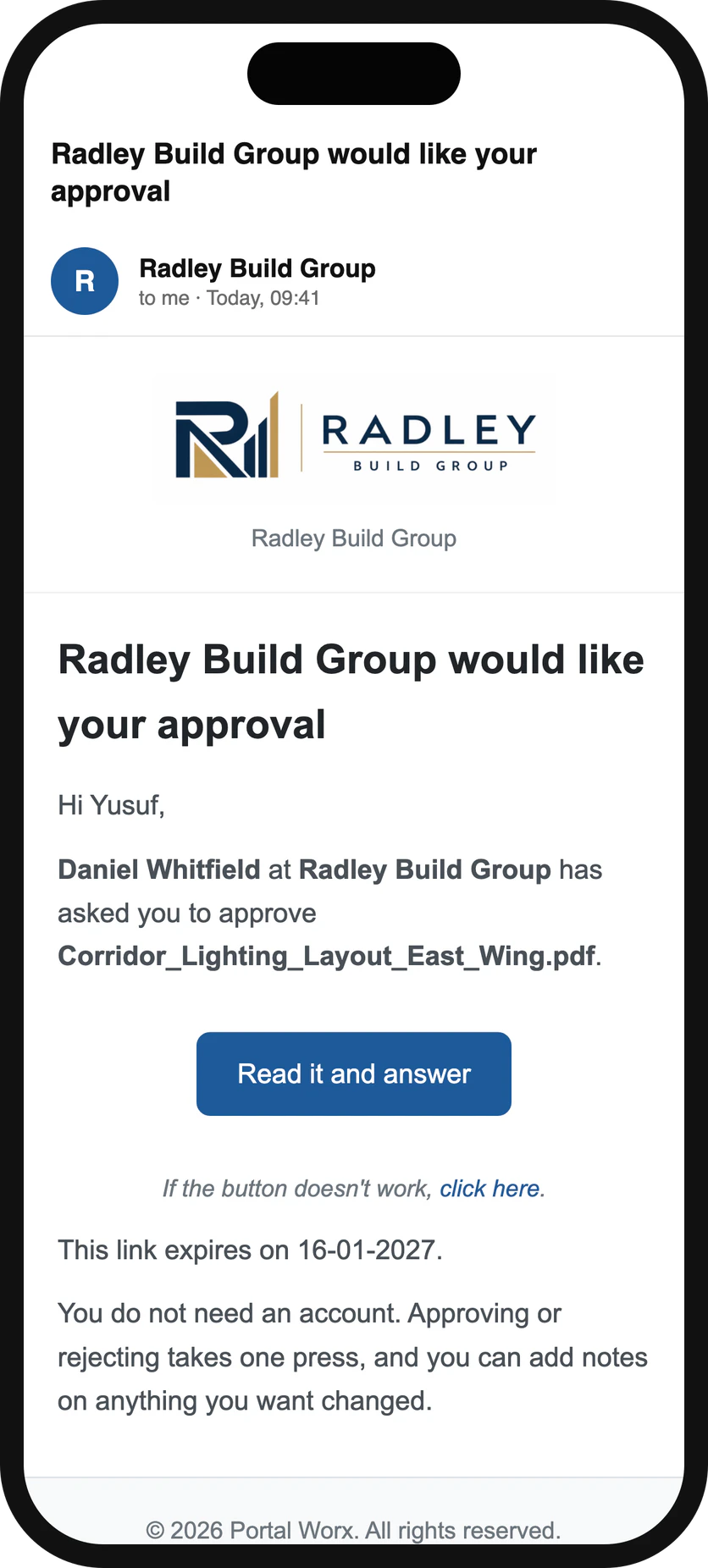
    The email on a phone: one link to the drawing, from the builder, with nothing to install
  3. They see the file itself

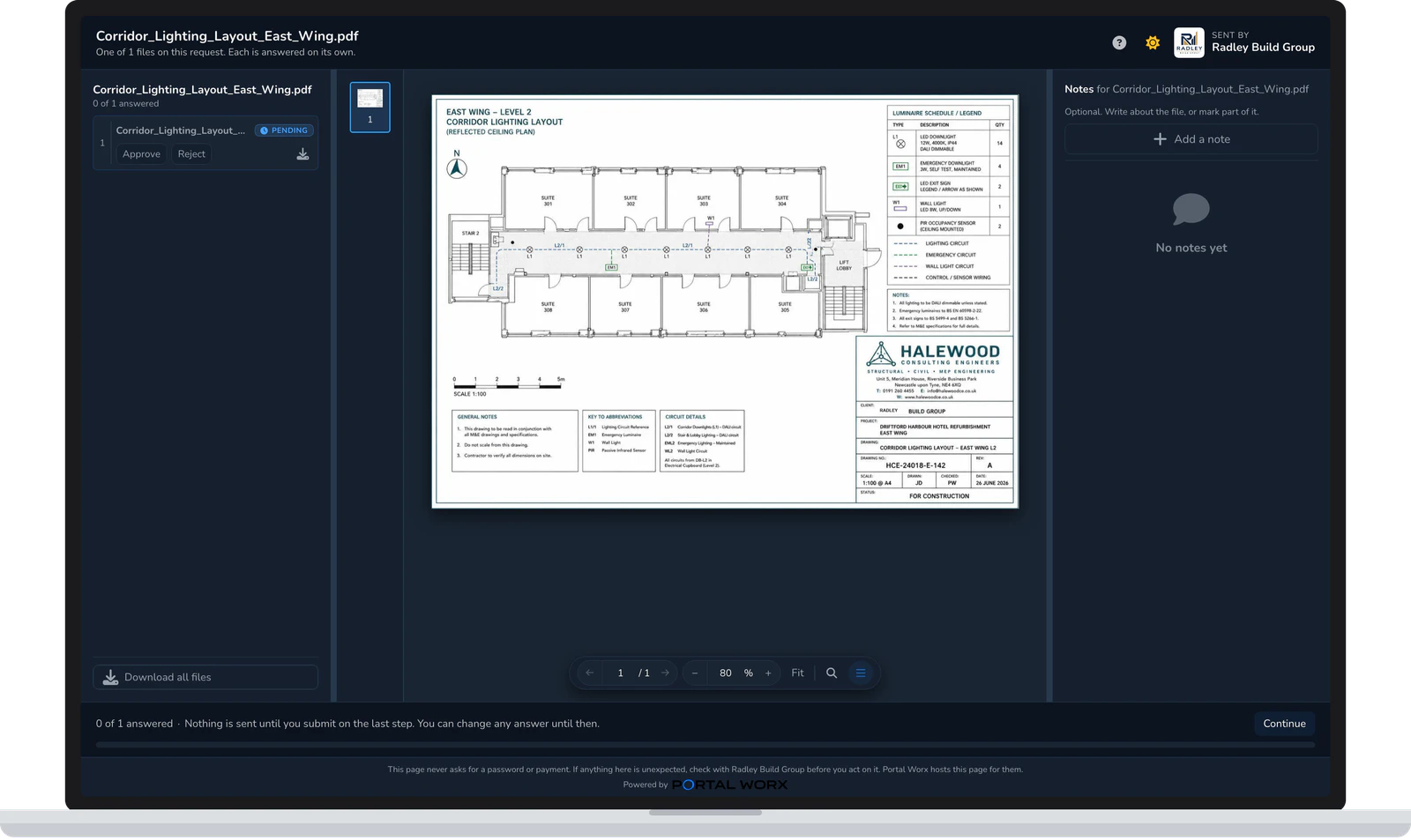
    The drawing, quote or variation opens in the page, every page of it, on a phone or a laptop. They can leave a note, mark the exact spot on the page that's wrong, approve, or reject.
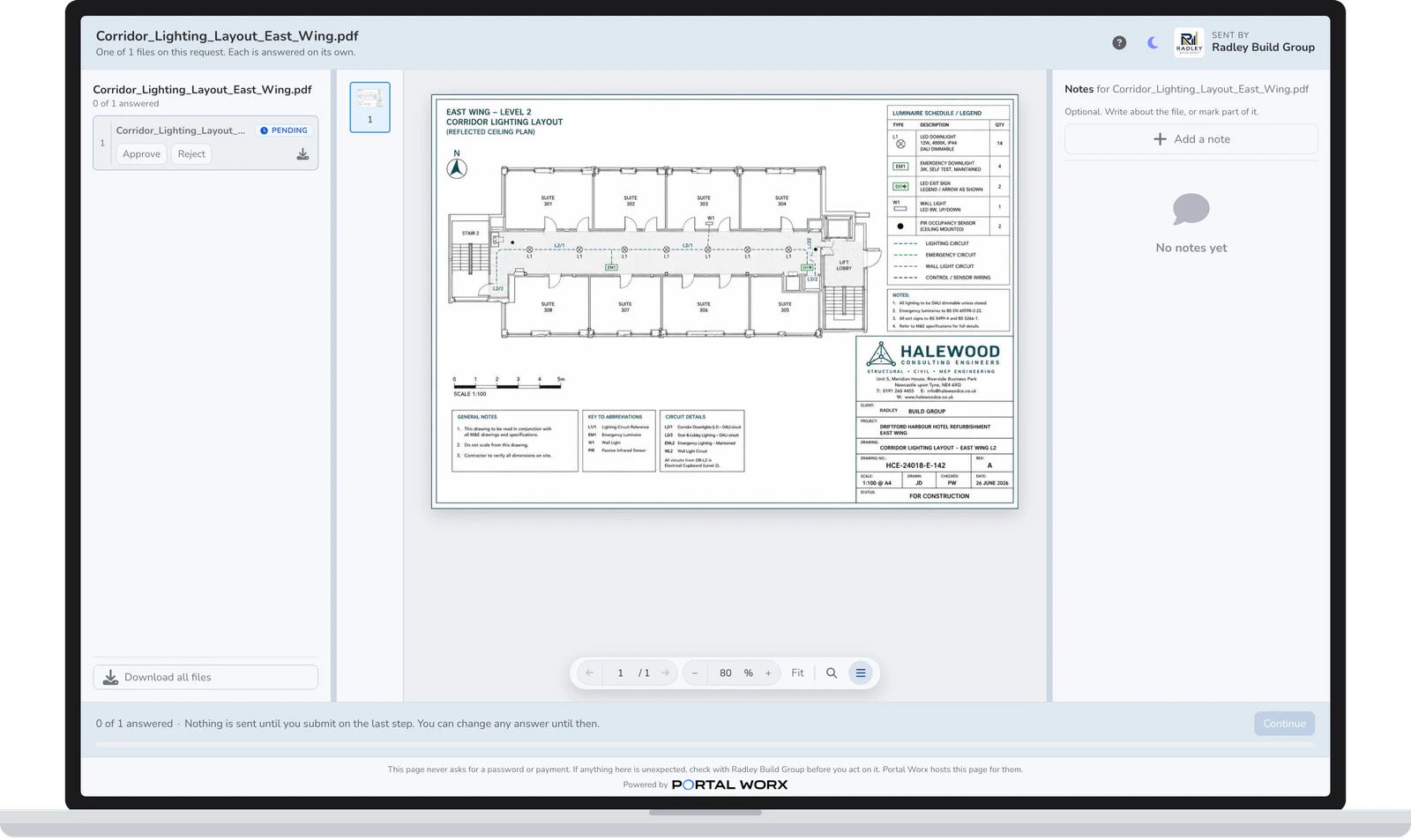
    The approval page on a laptop: the drawing, Approve and Reject, and no login
  4. They sign with a finger

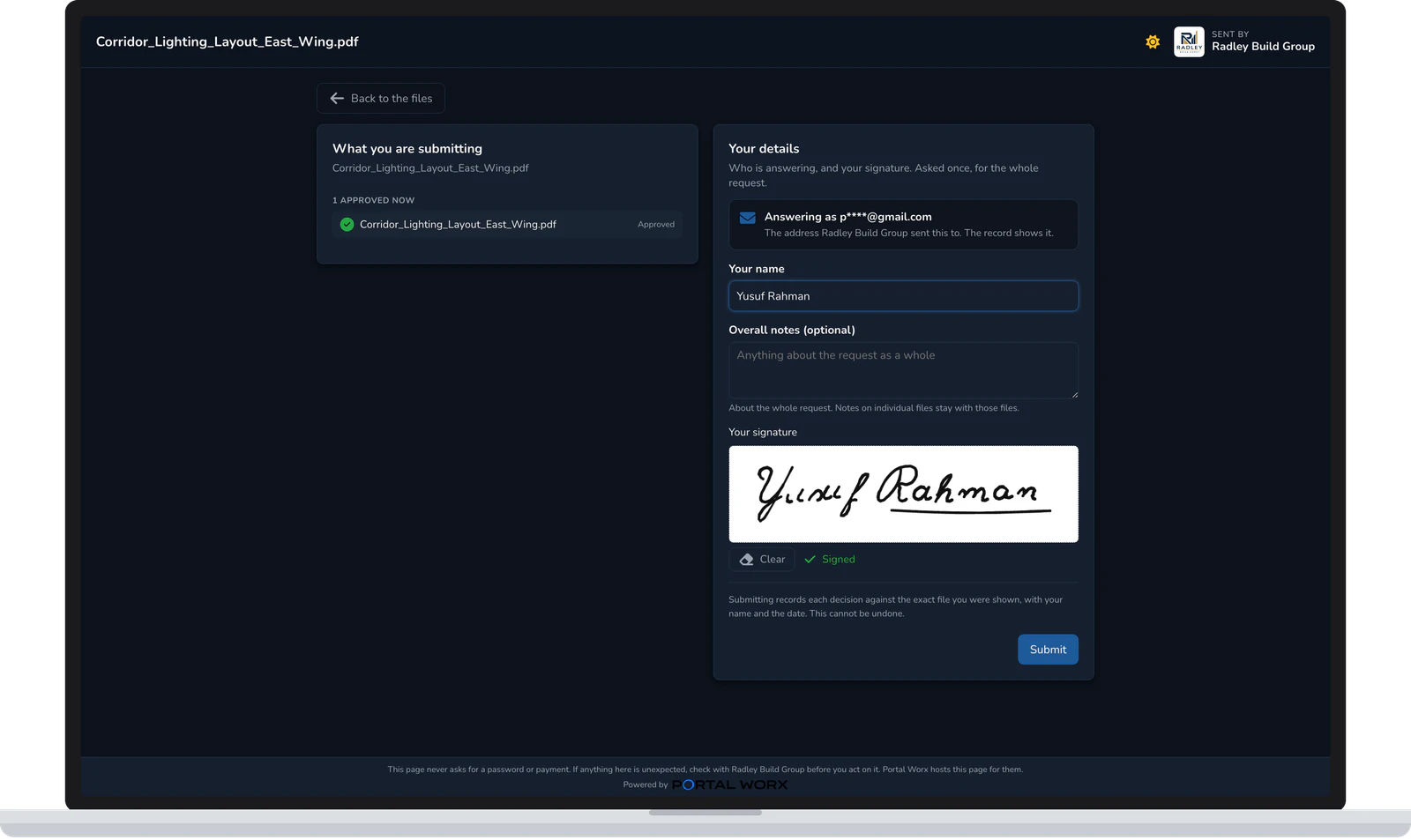
    Name, signature, submit. If you asked for the code, they type in the six digits we emailed them first, and the record says they did. About ten seconds.
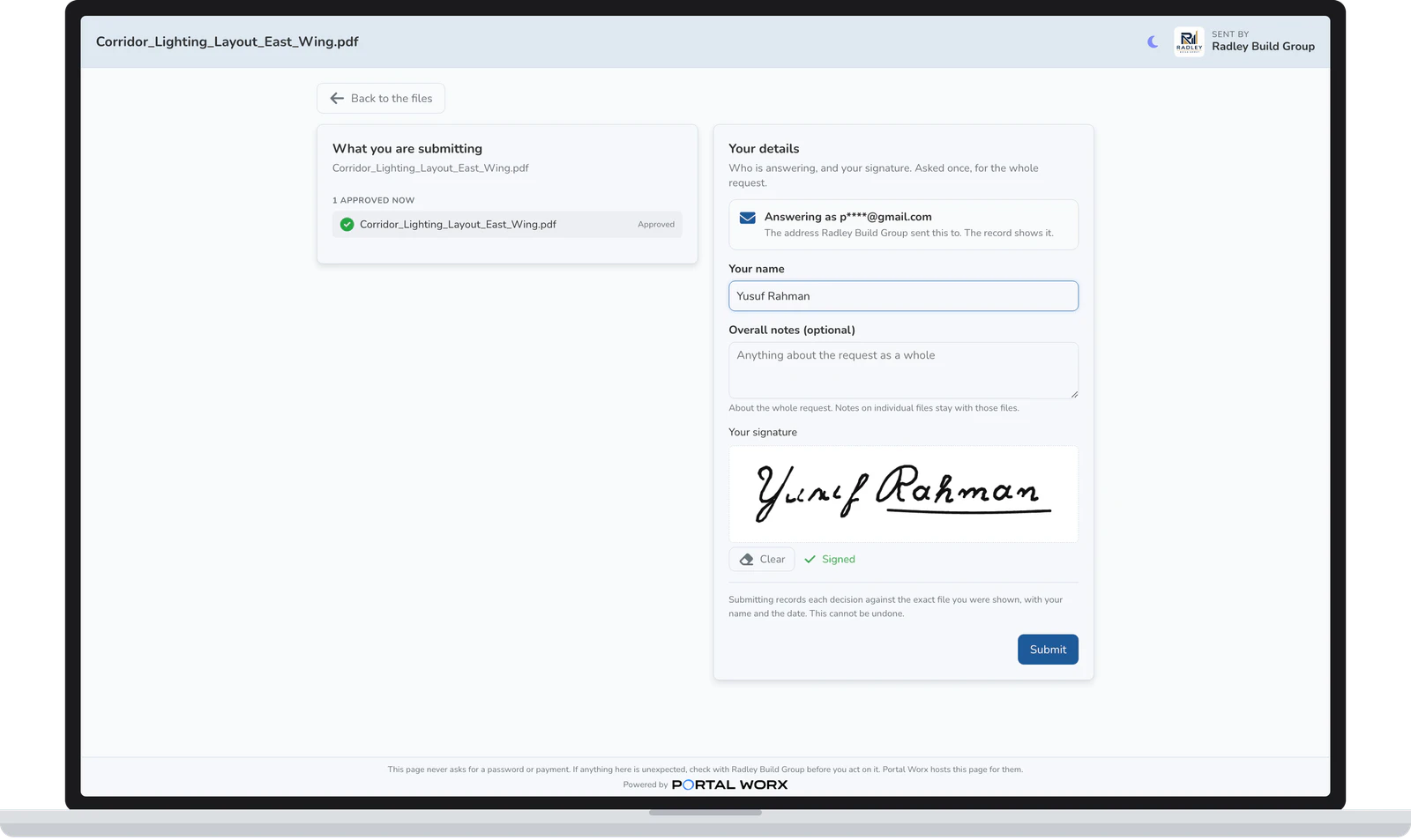
    The signing step on a laptop: the name typed and the signature drawn
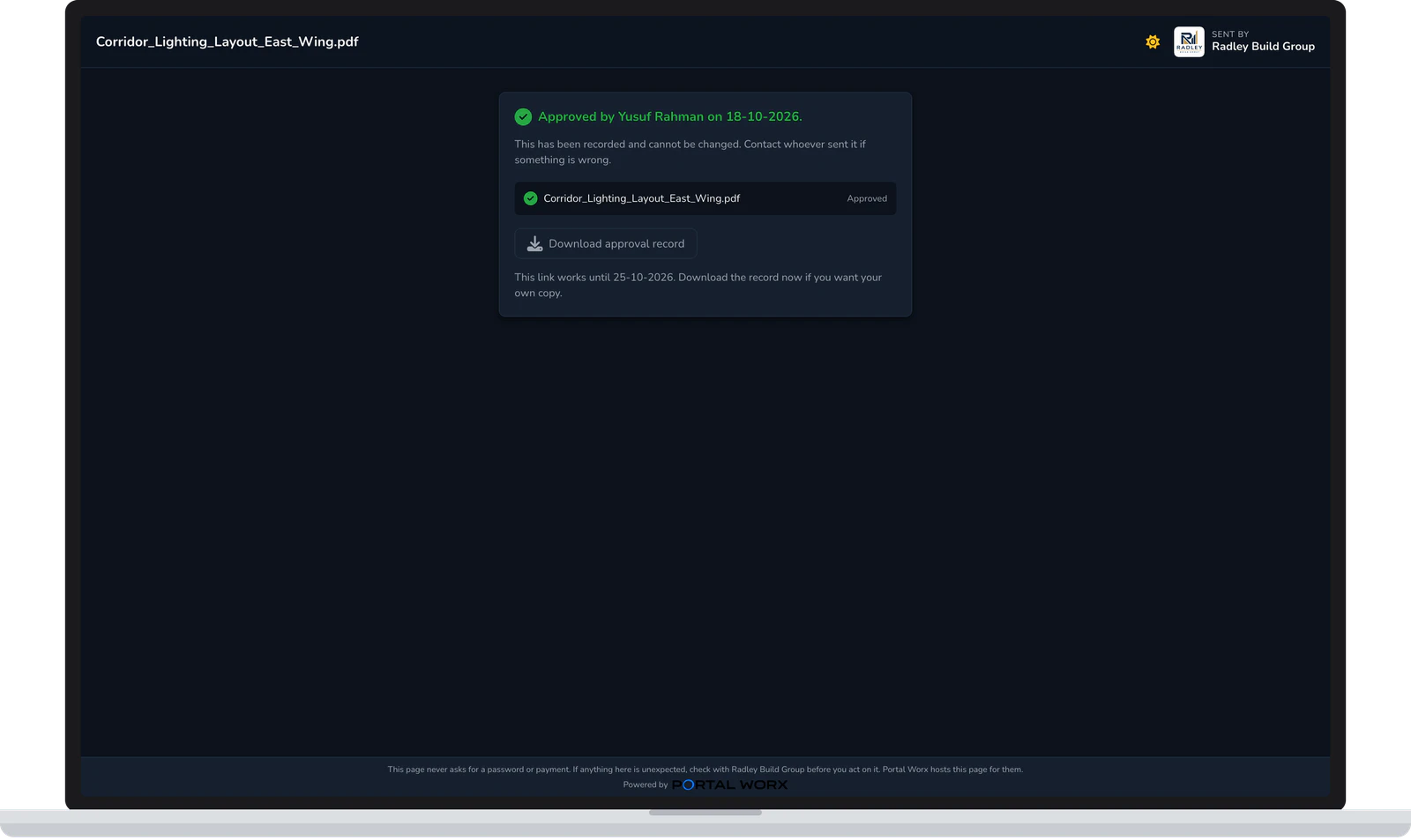
  5. Done, and on the record

    They see what they answered and can download the record; you get an email and the request moves to Settled. The record is written in that moment and stays on the document it's about, at the version they saw.
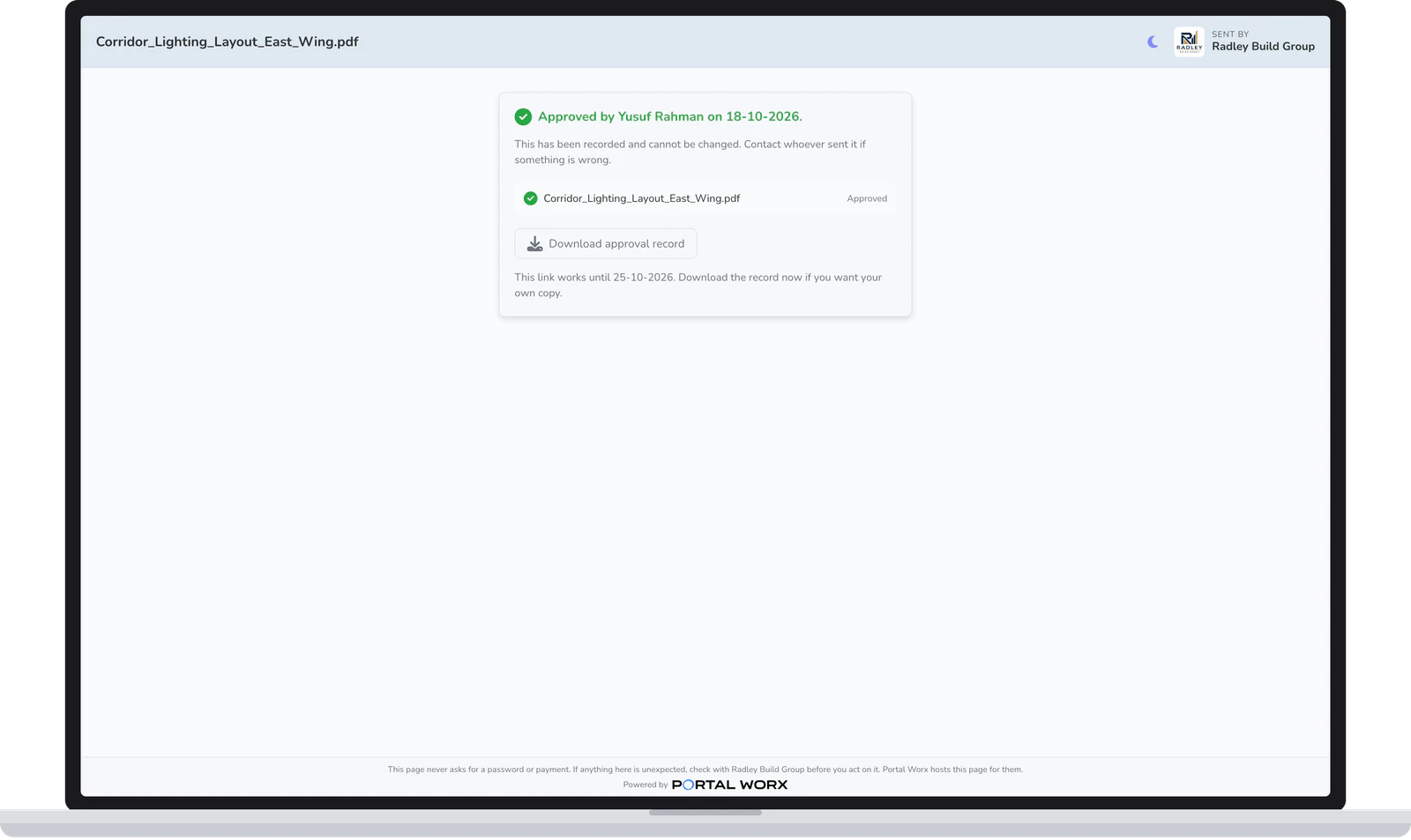
    The done state on a laptop: approved, signed and dated, with the record to download

What comes back

A PDF with the original file embedded in it. It names who answered and the address the link was sent to, the moment, the network address it came from, the signature they drew, whether they entered the code, the version they signed, and the fingerprint of the exact file. A note or a mark on the page comes back as a crop of that spot beside their words.

See a real record, annotated →
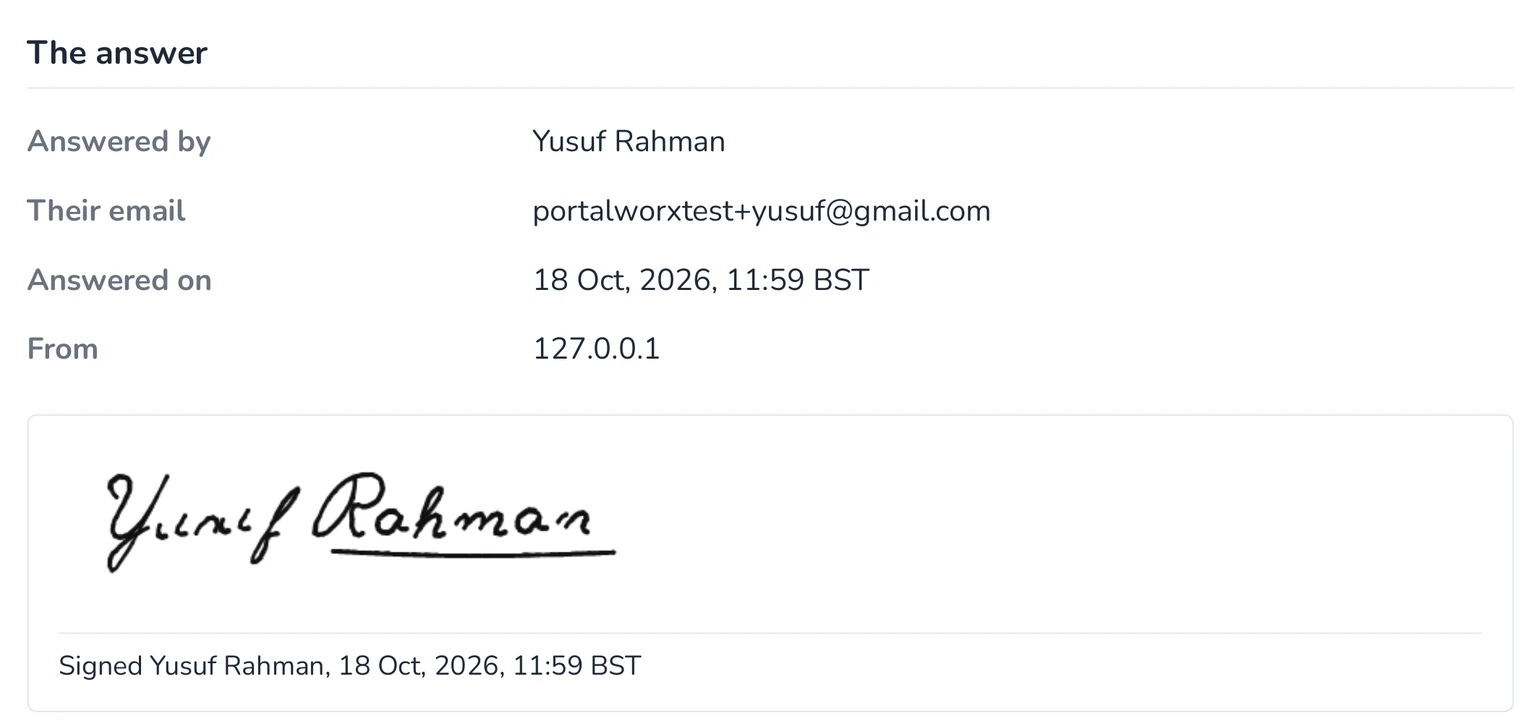
The answer block of a real record: answered by, the email address, the date and time, the network address, and the signature drawn on the page

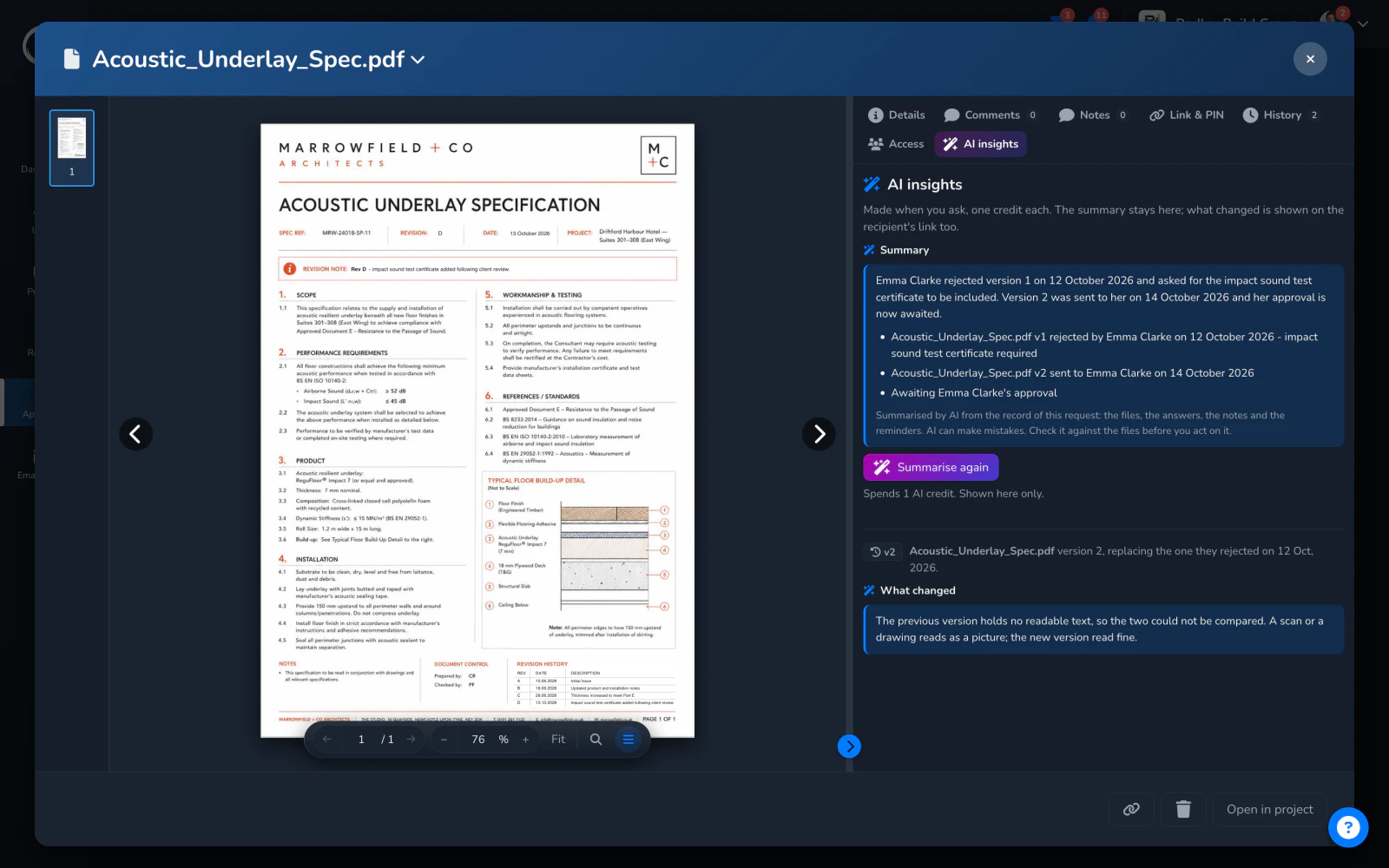
Where the request stands, and what the new version changed

The request's AI insights tab has two readings, each made on a press. The summary says who was sent what, when, what they said and what's still waiting, from the record of the request itself. The comparison reads the new version against the one they rejected and says what changed, and the client sees that same reading on their link, so nobody re-reads a forty-page spec to find the one line that moved.

  • Summarise again any time; the summary stays on your side
  • The comparison is made once per pair of versions and shown to both sides
  • A scanned version with no readable text says so plainly rather than guessing

A credit a press, from the monthly bundle every plan includes. AI can make mistakes: check it against the files before you act on it.
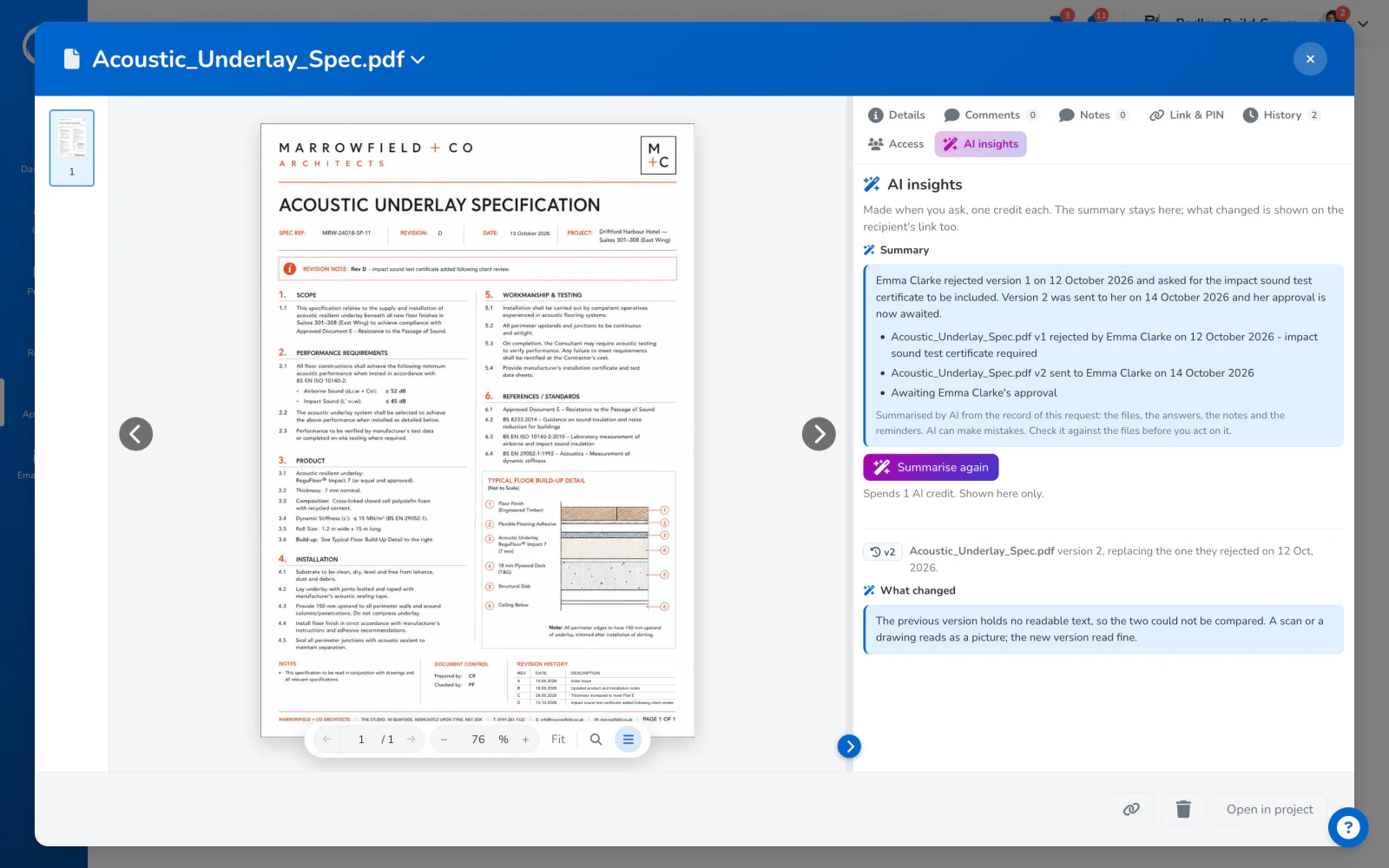
The AI insights tab of a sign-off request: a summary of where it stands and what this version changed

The parts people ask about

  • Reminders go out on day 3, day 7, then every 3 days until they answer, in your name. They stop on an answer, when the link expires, when you stop them, or when they opt out.
  • A bundle sends several files on one link with one answer per file, and a rejected file can be replaced in the same request on the same link.
  • Who on your side sees a request is the request's own audience: one owner can change it, and the people you name are told when it moves.
  • Correct a request nobody has answered yet, withdraw one, or archive a settled one. Every state says in a sentence why it is where it is.
  • The Approvals Centre groups every request on every project by who owes the next move: with them, with you, settled.
  • Every email a request sent is listed with whether it landed, and one click sends it again.

Sign-off is on every plan and isn't metered: send as many requests as the project needs, on the £29 plan too.

Questions people ask first.

Does my client need an account?
No. They open a link, and the link is the whole thing. It works for 90 days or until you turn it off, and you can add a six-digit PIN if you want a second check.
What can they sign?
Documents: PDFs, image files and plain text. Reports are shared with them rather than signed, and Word or Excel files need saving as a PDF first.
What does the record prove?
Who answered, the address the link went to, when, from where, the signature they drew, the version they saw and the fingerprint of the exact file. It's evidence of agreement, kept with the file. It isn't an identity check, and the record says so at its foot.
What happens when they ignore it?
The reminders you switched on go out on day 3, day 7 and then every 3 days, and stop the moment they answer. You can see every email that went out and whether it landed, and send any of them again.
Can I see a record before I sign up?
Yes. A real record from the demo project is on the record page, annotated line by line, and the PDF is there to download.

Send the first one today.

Set up in minutes and send a drawing for sign-off before lunch. Free for 14 days, no card, cancel any time.